By the end of this module
- Navigate a long session without losing context.
- Choose Shuffle, Slip, Spot, or Grid mode deliberately.
- Perform repeatable cut, copy, trim, separate, and heal operations.
Core knowledge
Principles before controls
Selection is the fundamental command
Most Pro Tools operations act on a time, clip, track, or edit selection. Confirm the selection before invoking a shortcut.
Modes change the rules of movement
Shuffle closes or creates space, Slip permits free movement, Spot uses exact locations, and Grid constrains moves to a chosen interval.
Zoom serves decisions
Move between programme context, phrase context, and sample detail. Staying too close encourages technically neat but editorially weak cuts.
Keyboard fluency reduces cognitive load
A small stable set of transport, zoom, trim, and selection shortcuts keeps attention on listening rather than tool hunting.
Guided build / approximately 90-120 minutes
Build it in the application
- 1
Open the supplied navigation exercise and identify rulers, track controls, clip list, toolbar, main counter, and edit cursor.
- 2
Use Return, Space, numeric entry, markers, and the memory-location window to move to exact programme points.
- 3
Practice horizontal and vertical zoom while keeping the selected phrase visible and maintaining a whole-programme view.
- 4
Separate a copy of the exercise clip at transients and phrase boundaries, then heal a separation that is no longer needed.
- 5
Move a sentence in Slip mode, close a deliberate gap in Shuffle mode, align a sound effect in Spot mode, and build a music edit in Grid mode.
- 6
Compare Standard Trim, Scrub Trim, and TCE Trim on duplicated clips. Restore the unprocessed version after each test.
- 7
Use tab-to-transient, selection extension, nudge, and clip spotting to construct three exact edit selections.
- 8
Repeat the exercise using only the approved shortcut sheet and record which operations still interrupt listening.
Independent challenge / 45-60 minutes
Prove the principle
Repair a deliberately disordered 45-second sequence without changing the source files. Use at least three edit modes and document why each mode was appropriate.
Portfolio checkpoint
Evidence to retain
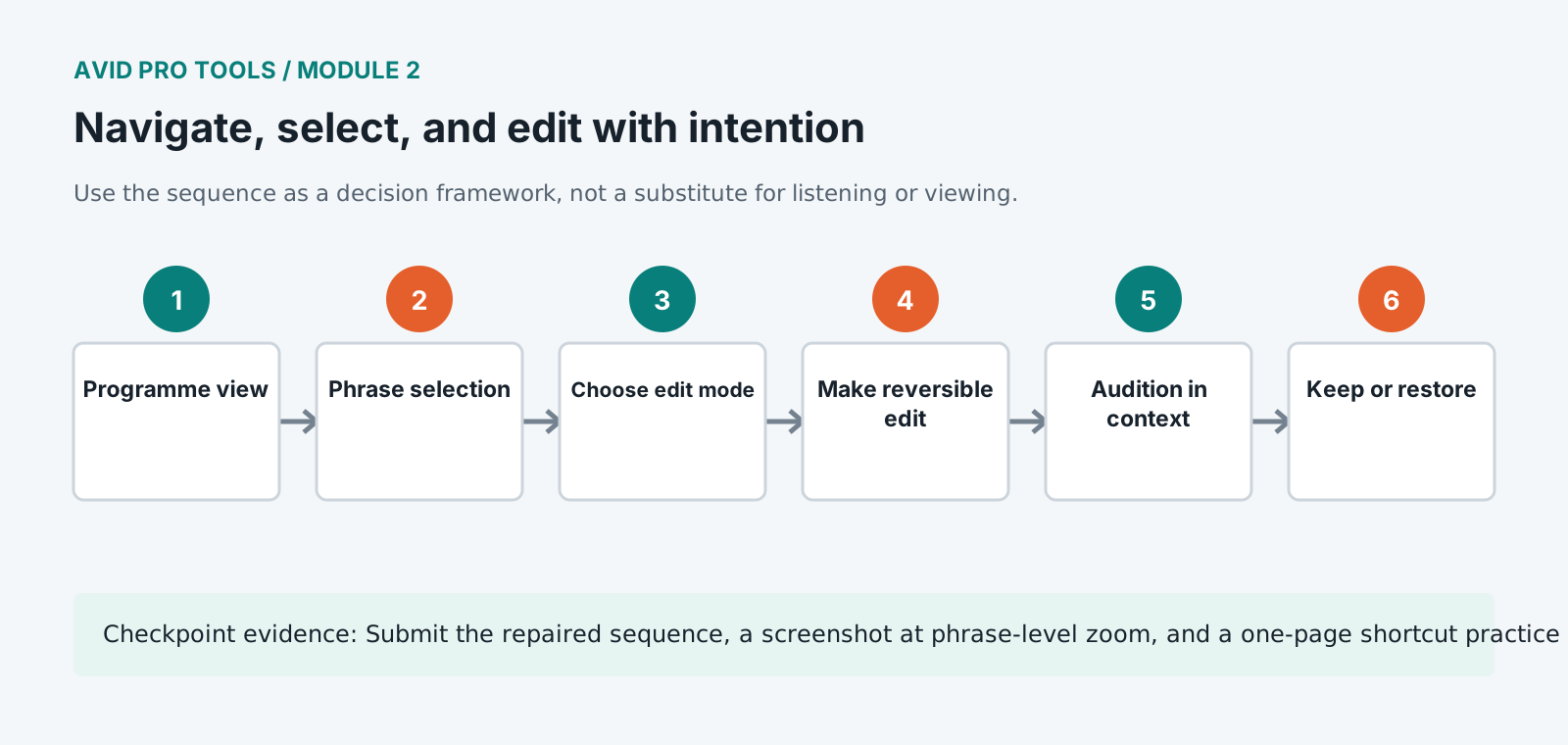
Submit the repaired sequence, a screenshot at phrase-level zoom, and a one-page shortcut practice log.
Store this evidence in 01_ADMIN/checkpoints/module-2 and include it in the final decision log.
Failure modes
Diagnose before retrying
Clips jump unexpectedly when moved
Check the active edit mode, grid value, and whether Shuffle affects adjacent clips.
A command changes the wrong tracks
Inspect track selection, edit selection, link-track-and-edit-selection state, and group membership.
The edit cursor and playback location disagree
Review insertion-follows-playback and timeline/edit-selection linking preferences.
Working vocabulary
Terms you must be able to explain
- edit mode
- A rule set controlling how clips move and align.
- nudge
- A command that moves or changes a selection by a defined increment.
- tab to transient
- Navigation that moves the cursor to detected waveform attacks.
- TCE trim
- Time compression/expansion trim, which changes duration using time processing.
Primary sources
Verify current behavior
- Pro Tools Reference Guide
- Pro Tools documentation
Lesson reviewed 2026-07-13. Verify menus and shortcuts against the lab release.
Failure in practice
Where this goes wrong
Learn selection before learning shortcuts. Most editing time goes on defining exactly what you intend to change, and an editor who can place a precise selection quickly is faster than one who knows more commands. Tab to transient and consistent zoom habits do more for speed than any macro.
Edit with intention rather than by trial. Knowing what a change is meant to achieve before making it turns editing into a series of decisions instead of a series of experiments, and it is the difference between finishing a pass and drifting through one.
Time yourself performing one common edit ten times. Speed here compounds across a project, and the slow part is almost always selection rather than the edit itself.
Learn the shortcuts for the operations you actually repeat rather than the ones a list recommends. Watching which three commands you reach for most in an hour tells you more about what to memorise than any general guide.